- Access itself is not going away. It still ships with Microsoft 365, and Microsoft's Access team said in July 2026 that it keeps getting fixes, security updates and new features.
- Older standalone versions are a different story. Access 2016 and 2019 lost support in October 2025, and Access 2021 followed on October 13, 2026.
- The usual reasons to move are not Microsoft's. They are shared-file limits, remote work, one person who understands it, and a business that has outgrown a desktop file.
- There are four honest options: fix it in place, move to Microsoft's Power Platform, use a low-code tool, or build a custom web app.
- The hard part is rarely the data. It's the rules hidden in forms, queries and macros, and the habits of the people who use it.
First, what Microsoft actually says
Every year someone hears that Access is being discontinued. It isn't. Access is still part of Microsoft 365 for Windows, and it still gets updates.
In July 2026, the Access team's program manager wrote on Microsoft's Access blog that the product continues to receive engineering investment, bug fixes, security updates and new features.
What does end is support for specific standalone versions. Microsoft's lifecycle pages are clear:
- Access 2016 and Access 2019 reached end of support in October 2025.
- Access 2021 and Access LTSC 2021 reached end of support on October 13, 2026.
- Access LTSC 2024 is supported until October 2029.
After end of support the program still opens. It just stops getting security fixes. If your database runs on one of those versions, you have a decision to make either way. Moving to Microsoft 365 or a supported version may be enough.
So the real question is not whether Access survives. It's whether your database still fits the business it now runs.
Signs it's time to move
Most Access databases that need replacing show the same symptoms. You'll recognize them.
- It lives in a shared folder. People open it over the network, and once a month it locks up or needs a "compact and repair."
- Remote staff can't use it well. Access is a Windows desktop program. Opening a shared file over a VPN from home is slow and invites corruption.
- One person understands it. They built it, or inherited it. Changes wait for them, and nobody wants to think about their retirement.
- Copies multiply. Someone keeps their own version "just for reports," and now there are two answers to the same question.
- Other systems need its data. Orders get exported to a spreadsheet, then retyped into accounting or the shipping system.
- Customers or field staff need access. A desktop file can't give a customer a status page or a technician a phone screen.
- Nobody can say who changed what. When a number is wrong, there's no history to check.
One or two of these can be managed. Four or five usually mean the database has become a core system wearing a prototype's clothes.
Option 1: Fix it in place
Not every Access problem needs a new system. Some need a tidy-up.
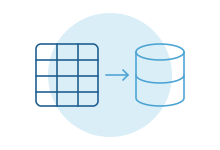
The common fix is to split the database. The tables move to a proper database server, often Microsoft SQL Server or its cloud version, and Access stays as the screens people already know. Corruption problems mostly go away. Several people can work at once without stepping on each other.
This makes sense when the people using it are in one office, the screens work well, and the trouble is reliability. It buys years for a modest effort.
It doesn't fix remote access, phones, customers or the single expert. If those are your problems, read on.
Option 2: Microsoft's own path
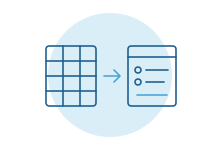
If your company already lives in Microsoft 365, the Power Platform is the obvious next stop. Data moves to SharePoint lists or to Dataverse, Microsoft's business database, and screens get rebuilt in Power Apps.
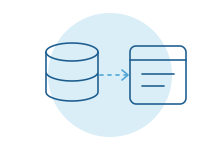
Microsoft provides a migration wizard inside Access that moves tables to Dataverse. Its own documentation also lists data types that don't carry over cleanly, so expect some cleanup.
Two things to know before you choose this path:
- Forms and reports don't migrate. The wizard moves data. Every screen, report and macro gets rebuilt.
- Licensing matters. SharePoint lists come with most Microsoft 365 plans. Full Dataverse and premium connectors usually mean paid Power Apps licenses on top. Ask whoever manages your Microsoft licensing before you design anything.
SharePoint lists suit simple trackers. They struggle with large volumes and complex relationships between records. Dataverse handles more, at a higher cost.
This path fits when the database is simple to moderate, your IT team is comfortable supporting Power Apps, and everyone who uses it already has Microsoft accounts.
Option 3: A low-code tool
Tools like Airtable or Smartsheet can replace a surprising number of Access databases. They're quick to set up, work in a browser and handle sharing well.
They fit when the logic is light, the data volume is modest and the process is mostly tracking. They get awkward when you need strict rules, complex calculations or detailed permissions. Our guide on Airtable or Smartsheet vs a custom internal tool covers where that line usually falls.
Option 4: A custom web app
Some Access databases have quietly become the system the company runs on. Orders, scheduling, pricing, compliance records. Those deserve to be built properly.
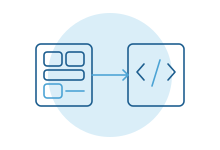
A custom web app runs in any browser, from the office, home or a job site. It can give customers a portal and staff a phone screen. It keeps a history of every change, controls who sees what, and connects to your accounting, CRM and shipping systems so nobody retypes.
It costs more to build than the other options, and someone has to look after it. It's the right call when the database holds real business rules, many people depend on it, and the off-the-shelf options would force the team to work around the software.
Moving the data
The data move is the part people worry about. It's usually the easier part, as long as you plan it.
- Clean before you move. Old Access files collect duplicates, blank records and free-text fields where dates should be. Decide what to fix, what to archive and what to leave behind.
- Map every field. Write down where each field goes in the new system, and what happens to fields that have no home.
- Find the hidden logic. Queries, macros and form code hold rules nobody wrote down. "If the customer is in Ohio, add the fee." Each one needs to be found and moved on purpose.
- Rehearse. Run the move on a copy, check the totals against the original, and fix what doesn't match. Then do it again.
Keeping the business running during the switch
The worst switch is a weekend cutover where Monday morning goes wrong and nobody can take an order.
Safer switches share a few habits. Move one part of the work at a time, starting with the one that hurts most. Run old and new side by side for a few weeks and compare the results. Keep the Access file available, read-only, until the team trusts the new system. Pick a quiet week for the final move, not month-end.
And involve the person who built the original. They know which odd rules matter and which were workarounds for a problem that's long gone.
What most guides miss
The database is the documentation. Nobody wrote the process down because the Access file was the process. Before you replace it, spend time with the people who use it and watch what they actually do. Half the requirements live in their habits, not the tables.
Reports are the hidden scope. Teams count forms and tables. Then they find forty reports, each one used by someone once a quarter. List them early and ask who still reads each one. Many can retire.
Don't copy the screens exactly. Familiar is good. Identical isn't. Some screens exist only to work around limits Access had. Keep what people rely on and drop the workarounds.
Decide who owns it next. The single-expert problem returns with any tool unless someone plans for it. Whatever you choose, make sure more than one person can change it, and that the data is in your company's name.
How we do it
We start with a free intro call and look at what the database actually does. Sometimes the honest answer is to split it and keep it. When it needs replacing, we work alongside the people who use it, move the data in rehearsed steps and run old and new together until the numbers match. Then we stay on to keep it running. Start with an intro call.