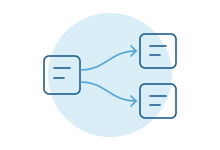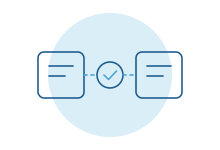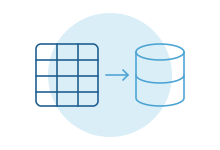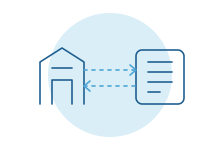
- Procore's Sage Intacct connector syncs projects, vendors, cost codes, budgets, commitments, change orders, subcontractor invoices and job costs, each in a set direction.
- Accountants approve commitments and change orders in Procore before they go to Sage Intacct.
- It has limits: owner invoices aren't integrated, projects started before connecting need extra help, and cost code structures must follow its rules.
- Your Sage Intacct subscription needs Web Services and Construction.
- For many contractors the connector is the right base. Custom work fills the gaps around it.
A scene from the fifteenth
The project manager approved a subcontract change order in Procore last week. The accountant approved it too. It's in Sage Intacct. Good.
The owner billing is another story. The pay application was built in Procore, then keyed into Sage Intacct by hand. Retainage on the owner side is tracked in a spreadsheet.
And the job that started before the connector went live still runs on exports, because nobody brought it across.
That's normal. The connector covers the commitment side well. The rest is where your team's hours go.
What the built-in connection handles
Procore offers its own connector for Sage Intacct, set up at the company level in Procore. From Procore's support documentation, as of November 2026:
- Projects and jobs. Export a Procore project to create a Sage Intacct job, or import a Sage Intacct job to create a project.
- Vendors. Link a Sage Intacct vendor to a Procore company, or create one from the other.
- Cost codes and cost types. These come from Sage Intacct. New cost codes are created there, not in Procore.
- Budgets. Original budgets and budget changes export to Sage Intacct.
- Commitments and change orders. Subcontracts, purchase orders and their change orders export once a designated accountant approves them in Procore.
- Prime contracts. The contract and schedule of values import from Sage Intacct. Prime contract change orders export from Procore.
- Subcontractor invoices. These export as bills, with retainage fields.
- Job costs and direct costs. Approved costs from Sage Intacct, such as payroll and expenses, import into Procore so project teams see actuals.
The accountant approval step matters. Nothing reaches the ledger until someone in accounting says yes inside Procore.
Where it stops
Procore's documentation lists what the connector doesn't do. The ones contractors feel most:
- Owner invoices. Integrated owner invoices and their payments aren't supported, so pay applications are entered twice or handled another way.
- Projects already under way. Projects that were in progress, or created before the connector, can't sync on their own. Procore offers paid professional services for that.
- Cost code rules. Custom WBS segments aren't supported, and mixed delimiters, mixed tiers or duplicate code names cause trouble. Check your structure before you connect.
- Payments. Some payment syncs depend on region and on using Procore Pay. Check what applies to you.
- Vendor compliance records. Some subcontractor compliance details are kept separately in each system, so check which ones your team tracks where.
One more to watch. If accounting enters subcontractor bills directly in Sage Intacct as well, check how those costs appear in Procore so nothing is counted twice in projected cost.
Your options
Use Procore's connector as it is. If your cost codes fit its rules and owner billing is light, it may be all you need. Procore maintains it, and the approval step keeps accounting in control.
Add a third-party connector. Other software companies also connect Procore and Sage Intacct. Compare what each syncs against your list of gaps, not the feature page.
Build a custom connection beside it. This makes sense for owner billing, legacy projects, unusual cost structures or reporting across both systems. Procore allows custom apps that your company admin installs.
Most contractors land on a mix: the official connector for commitments and costs, and a custom piece for what it leaves out.
What a custom connection usually adds
- Owner pay applications prepared from Procore and drafted in Sage Intacct for accounting to review.
- Owner-side retainage tracked per job, with a clear list of what's due back.
- Subcontractor invoices checked against commitments and change orders before approval. See invoice processing.
- A weekly view of cost against budget by job that both PMs and the controller trust.
- Alerts when a commitment waits too long for accounting approval.
Sage Intacct's dimensions are its strength. A good connection fills them consistently, so job, department and location reporting works without cleanup.
Signs the connector alone isn't enough
The connector usually works as described. The question is whether it covers your money. Watch for these:
- Owner pay applications are keyed into Sage Intacct by hand each month.
- Owner-side retainage lives in a spreadsheet beside both systems.
- Older jobs still run on exports long after the connector went live.
- Project managers and the controller argue over which cost report is right.
- Commitments sit for days waiting on accounting approval, and nobody notices.
If none of this sounds familiar, you may not need more than the connector. That's a good outcome.
Questions to answer before you build
Bring these to a meeting with your controller, a project accountant and your Procore admin:
- Does our cost code structure meet the connector's rules, or does it need cleanup first?
- Which jobs started before the connector, and how will they finish?
- How do we bill owners today, and where is that work duplicated?
- Which Sage Intacct dimensions do we report on, and are they filled in consistently?
- Who covers the accountant approval role when the usual person is out?
The answers become the plan. They also show whether the gap is worth closing at all.
Who owns the access
Your Procore company admin installs any custom app, and your Sage Intacct admin authorizes the connection on the Sage side. The access belongs to your company, and either admin can switch it off. Our guide on vendor approval for integrations explains why that matters.
What most guides miss
Fix the cost codes first. The connector's rules are strict. Cleaning up your cost code structure in Sage Intacct before go-live saves weeks later.
Plan the cutover. Decide which jobs move to the connector and which finish on the old process. Mixed months are where errors hide.
Name the approver. The designated accountant role is a bottleneck by design. Make sure someone covers it during vacations and month-end.
How we do it
We start with a free intro call and a look at one job from contract to close. Then we work alongside your project accountants and Procore admin, keep the official connector and build what it leaves out. See our Procore and Sage Intacct integration pages for more.